
It happens to everyone eventually. You film something that actually matters, a birthday, a client shoot, footage from a trip you’ll never repeat, and then the file won’t open. Black screen, cryptic error, or it plays for ten seconds and freezes. Not fun.
Here’s the part that helps, though: a corrupted video usually isn’t a dead video. Below are five ways to bring one back, starting with the free stuff and working up to what you’d actually need for a file that’s really messed up.
Why Does This Happen to MP4 Files, Anyway?
Worth a quick detour before the fixes. A handful of things tend to cause it:
- A file transfer that got cut short
- Power dying mid-recording
- Pulling an SD card out before it’s ready
- The storage device itself going bad
- Malware, or just a system crash at the wrong moment
- A download that never finished
- An editing program getting interrupted
None of these mean the footage is gone for good, most of the time it’s just the file’s structure that’s broken, not the actual content.
Method 1: Repair It Online, for Free
Don’t want to install anything, or the video’s badly damaged and you just want to test the waters? This is where to start.
A browser-based repair tool lets you upload the damaged file straight from wherever it lives and tries to rebuild it on the spot. Doesn’t matter if that’s a phone, tablet, or a Windows or Mac computer, it works the same either way.
Where this tends to shine:
- MP4 videos
- MOV files
- Smartphone recordings
- Camera footage
- Drone videos
Nothing to install, nothing to configure, works the same on Windows or macOS. That’s really the whole pitch.
If you want a place to start, look for an online video repair service that handles MP4s in the browser and offers a free option for smaller files.
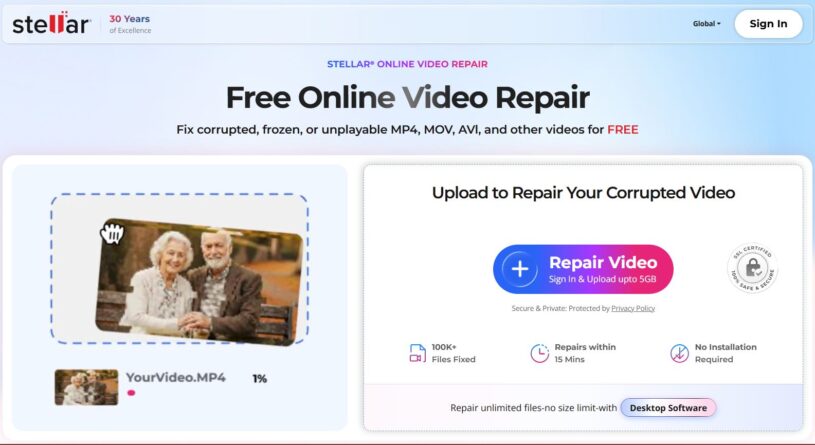
Figure 1: Uploading a file to Stellar’s online video repair tool.
Method 2: VLC’s Built-In Repair Trick
If the damaged file is an AVI, VLC actually has a repair function hiding in its settings. Here’s how to get to it:
- Open VLC Media Player
- Go to Tools > Preferences
- Click Input / Codecs
- Set the AVI repair option to Always Fix
- Open the damaged file
VLC wasn’t built for MP4 repair specifically, so don’t expect miracles, but for a minor playback issue it’s worth the two minutes it takes.
Method 3: Just Convert It to a Different Format
Sometimes what’s broken isn’t the video itself, it’s the container it’s wrapped in. FFmpeg or VLC can convert the file to a different format, which in the process rebuilds the MP4 container from scratch.
This can clear up:
- Unsupported container errors
- Small playback glitches
- Minor indexing problems
If the actual video structure underneath is what’s damaged, though, converting won’t do much. It only fixes the wrapper, not what’s inside it.
Method 4: Check for a Backup Before Anything Else
If the file lived in cloud storage or synced to another device, there’s a decent chance an earlier, healthy copy is sitting around somewhere. Worth checking before you spend time repairing anything.
- Google Drive
- OneDrive
- Dropbox
- Time Machine on macOS
- Windows File History
Finding the original there beats repairing a broken copy every single time.
Method 5: Bring in Real Repair Software
Tried everything above and it’s still not playing? At that point you’re probably dealing with something deeper than a quick fix can handle.
This kind of damage usually traces back to:
- Recording that cut off unexpectedly
- A battery dying mid-shoot
- Bad sectors on the storage media
- Corruption picked up during a transfer
Dedicated repair software is built for exactly this. Instead of just trying to play the file like a media player would, it actually analyzes the broken structure and rebuilds whatever metadata is missing.
It’s also built to handle footage from:
- Smartphones
- DSLR cameras
- Mirrorless cameras
- Action cameras
- Drones
- Professional camcorders
For footage that actually matters, or files that are just too large or too damaged for the free route, an advanced video repair tool gives you a real shot at recovery that basic utilities just can’t match.
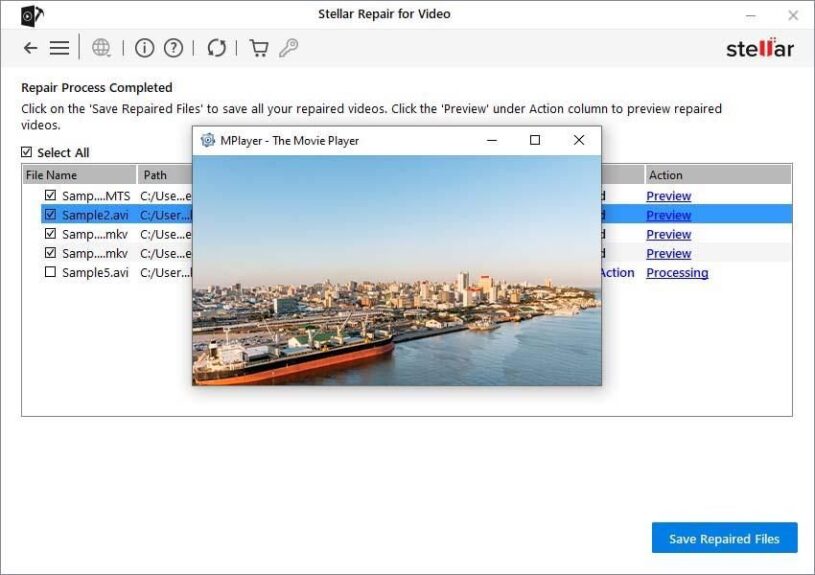
Figure 2: Stellar Repair for Video working on a damaged MP4 file.
Online Repair vs. Desktop Software
| Feature | Online Repair | Desktop Software |
| Install anything? | Nope | Yes |
| Small files | Handles them well | Handles them well |
| Large videos | Can struggle | Better equipped |
| Severe corruption | Hit or miss | Much stronger odds |
| Repairing in batches | No | Yes |
| Pro camera footage | Hit or miss | Yes |
If you just need something fixed fast, the online route is the easy call. But for anything you actually can’t afford to lose, or a file that’s badly damaged, desktop software gives you a lot more to work with.
How to Avoid Doing This Again
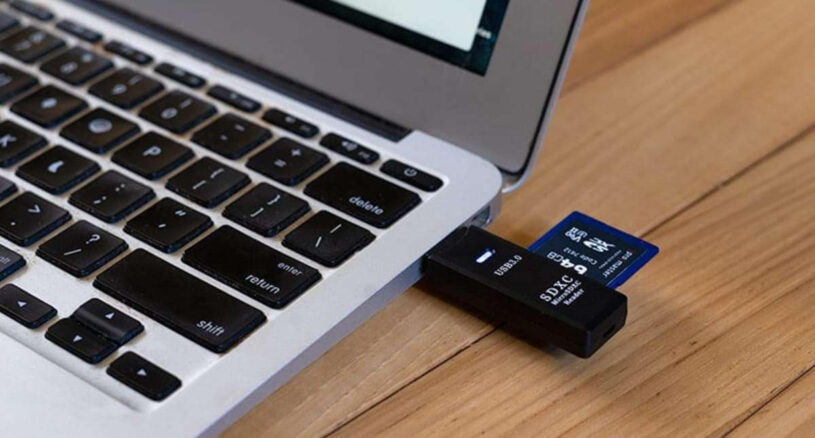
- Eject memory cards properly, don’t just yank them
- Let file transfers finish before touching anything
- Keep the battery charged during longer recordings
- Don’t let storage cards fill up completely
- Back up footage you’d actually miss, and do it soon
- Spend the extra few dollars on a decent memory card
Small habits, but they save you a lot of frustration down the line.
Questions People Usually Have
Can I really repair an MP4 for free online?
Yes, for the most part. A handful of browser-based tools handle this well, and they’re usually free for smaller or lightly damaged files.
What if the video is really badly corrupted?
Once there’s real structural damage or the file won’t open at all, dedicated repair software is going to give you the best odds by a wide margin.
Does the online option work on a Mac?
Yep. Since it all runs in the browser, it doesn’t care whether you’re on Windows or macOS.
Bottom Line
A corrupted video isn’t the same thing as a lost one. Whether it’s a phone recording, drone footage, or something from a client shoot, an online repair tool is a reasonable first move and it costs you almost nothing to try. If that doesn’t get the job done, professional repair software can usually recover what basic tools can’t.
Which method makes sense really comes down to how bad the damage is, but the sooner you act, the better your odds of getting the footage back.