
Imagine an employee leaves, Microsoft 365 account is removed, and the only remaining mailbox data is an OST file on an old laptop. Outlook will not simply open it, yet legal, finance, or support teams may need those messages today.
What is the quickest safe route back into the mailbox?
Stellar reports that its online service has processed more than 100,000 files, showing how common this conversion problem is. This documentation-led review explains when to use the browser tool, when the desktop edition makes more sense, what each workflow involves, and which limitations IT teams should verify instead of treating vendor claims as independent lab results.
Here’s What’s Inside
- Why orphaned OST files are difficult to access
- How Stellar’s online OST to PST converter works
- Which desktop features matter in real conversion jobs
- A practical online-versus-desktop verdict
Why an OST File Can Become a Serious IT Problem
An OST file is usually a synchronized local copy of an Exchange or Microsoft 365 mailbox. Microsoft explains that Outlook creates it for Cached Exchange Mode and can normally rebuild it from the server. The trouble starts when the account, profile, or server connection no longer exists.
An employee’s account may be deleted, an Outlook profile may become corrupted, or an Exchange server may be unavailable while the local OST still contains needed messages.
Unlike a PST file, an orphaned OST is connected to its original mailbox context and is not designed as a portable archive. That is why users cannot usually browse to the file and open it like a regular Outlook data file.
Converting OST to PST creates a separate Outlook-readable file that can be opened, searched, reviewed, and retained according to the organization’s policies. Microsoft Outlook provides direct options for opening PST files once they have been created.
Online OST to PST Converter by Stellar : What to Expect
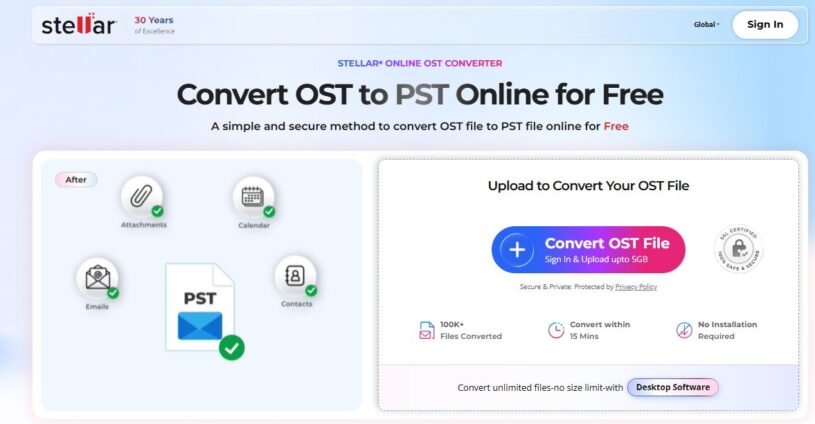
For a small, one-off job, online OST to PST Converter by Stellar is the simplest place to start. It runs in a browser, requires no local installation, and does not require Outlook or an active Exchange Server connection.
Stellar currently offers free conversion for one OST file below 500 MB, while its paid online tier supports a single file up to 5 GB.
This option suits home users, consultants helping one client, and employees who need quick access without administrator rights to install software. The online service says it preserves emails, attachments, contacts, calendars, tasks, notes, journals, and the original folder hierarchy.
Still, uploading a mailbox means sending potentially sensitive content to a third-party service. Business users should confirm internal approval, retention terms, contractual obligations, and data-handling requirements before proceeding.
How the Online Conversion Workflow Should Be Demonstrated
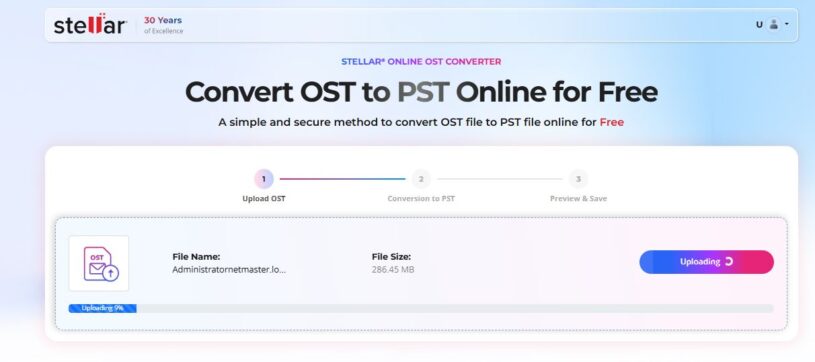
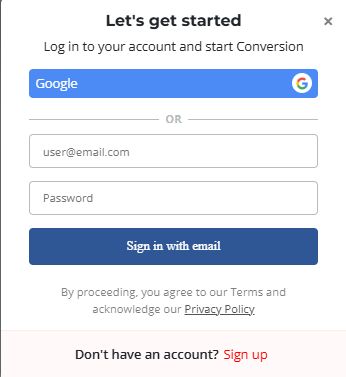
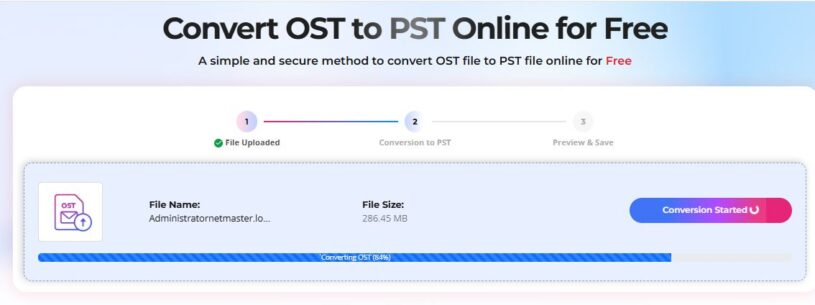
A useful review should show the complete process rather than stopping at the upload screen. First, copy the source OST. Then open the browser tool, sign in and complete email verification shown, select the file, and let the service upload and process it.
Conversion time depends on the file size and internet connection. Stellar says many files are converted and ready to download within approximately 15 minutes, although larger files may take longer.
- Upload the correct OST copy
- Complete account or email verification
- Start upload and conversion
- Preview the folder structure and item count
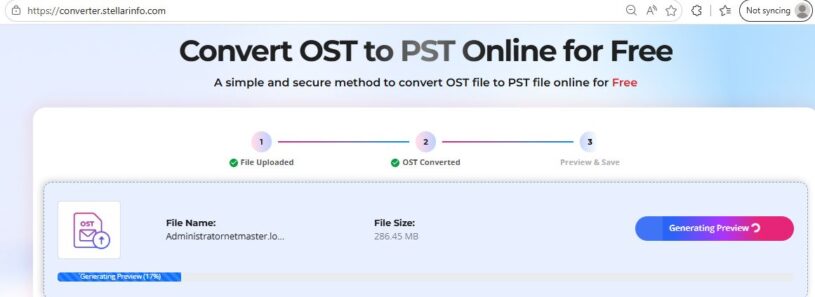
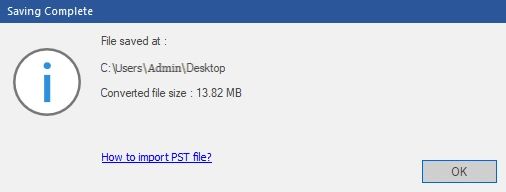
- Download the PST and open it in Outlook
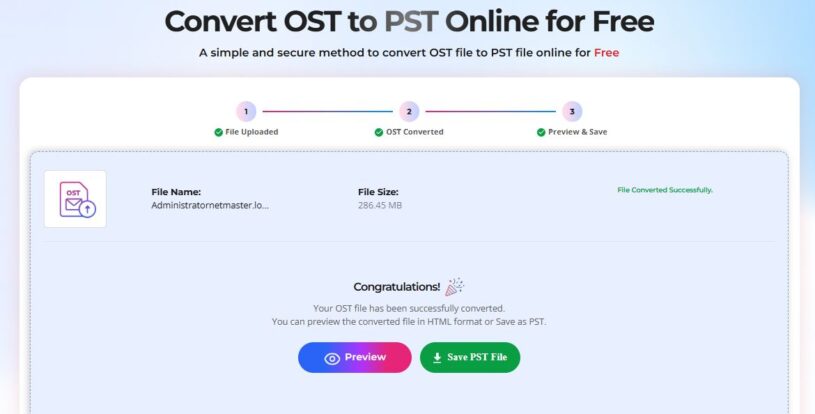
In classic Outlook, use File > Open & Export > Open Outlook Data File, you can confirm Inbox, Sent Items, custom folders, contacts, calendar entries, and several attachments.
When Stellar Converter for OST Becomes More Practical
The online converter works well for quick conversions. However, IT administrators often deal with larger mailboxes, multiple OST files, compliance requirements, mailbox verification, and data conversion scenarios. That is where the desktop solution becomes more practical.
Stellar Converter for OST runs locally on Windows and is useful for larger or more complicated jobs. The Corporate edition focuses on converting and saving mailbox data, while the Technician edition adds capabilities such as batch conversion, PST compaction and splitting, and direct export to Microsoft 365 or live Exchange.
The desktop product also has no stated OST file-size limit.
Processing time depends on OST health, mailbox size, attachment volume, storage speed, and available memory. For production work, save the output to a fast local drive with enough free space.
Desktop Test: OST Discovery and Full Mailbox Preview
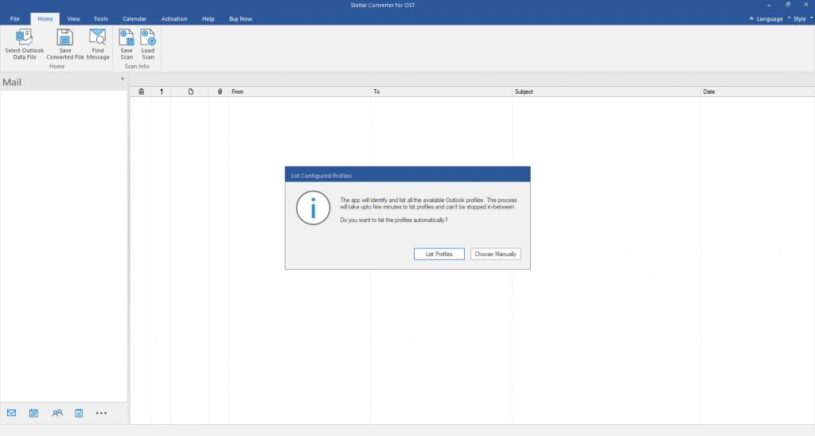
Let’s take a closer look at file discovery. Stellar Converter for OST can list OST files found in Outlook’s default location, while the Find option searches another folder, subfolder, or drive.
Manual selection remains useful when the OST came from a backup disk, another employee’s computer, or a forensic image. This flexibility saves time when the original user cannot identify the file path.
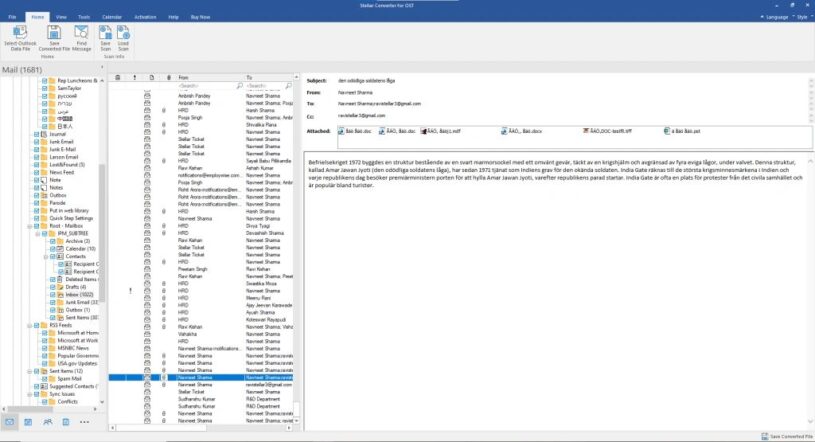
After scanning, the strongest practical feature is the detailed preview. The interface lets reviewers inspect folders, emails, contacts, calendars, and attachments before paying to save the result. That is more useful than blindly converting a large file and discovering later that the required mailbox is missing.
Desktop Features That Matter in Real Conversion Work
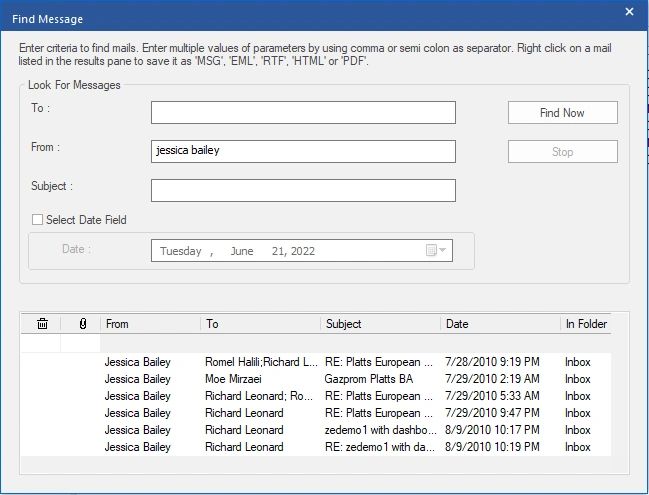
Stellar Converter for OST Desktop Edition supports item-level preview and selective saving, allowing reviewers to choose particular folders or messages instead of exporting everything.
Its filtering options can include or exclude content by date range, sender, Junk Email, or Deleted Items.
The most important practical features are:
- Preview before conversion: We have Verified that the target mailbox content is visible.
- Selective conversion: Reduces output size and avoids exporting irrelevant folders.
- Large OST support: Helps with enterprise mailboxes that exceed browser limits.
- Folder-structure preservation: Keeps Inbox, Sent Items, and custom folders organized.
- Deleted-item handling: It can recover deleted items, highlighted in red color.
Online vs Desktop Stellar Converter for OST Comparison
Both options convert OST to PST, but they solve different classes of problems.
| Review point | Online converter | Desktop converter |
| Setup | Browser-based, no installation | Installed Windows application |
| Best fit | One small, quick conversion | Large, repeated, or complex jobs |
| File limits | Free under 500 MB; paid up to 5 GB | No OST size limit |
| Preview | Folder structure and item-count preview | Detailed item-level mailbox preview |
| Selection | Primarily a whole-file workflow | Folder, item, and filter-based saving |
| Advanced work | Basic conversion | Batch jobs, splitting, compaction, Microsoft 365 or Exchange export by edition |
The online OST to PST converter now provides a basic browser preview. For files up to 500 MB, users can review the folder structure and item count before downloading. The desktop application goes further by offering detailed previews of individual emails, attachments, contacts, and calendar items.
The good news? Choosing is straightforward. Use the online OST to PST converter when convenience matters most and file fits are small, suitable for one time use. Choose desktop edition when verification, selective export, local processing, repeated conversions, or administrator-focused features are required.
Security, Compliance, and PST Storage Checks
Mailbox conversion can expose personal data, contracts, credentials, legal correspondence, and regulated information. Before using an online converter, confirm that uploading the OST is permitted by company policy and any client agreement.
Stellar prioritizes data security by encrypting files during upload and automatically deleting them after conversion – within 24 hours for the Free plan and 48 hours for the Premium plan – helping organizations protect sensitive mailbox data.
Reviewer Verdict: Who Should Use Each Version?
The online OST to PST converter by Stellar is the better first choice for home users, one-time conversion, small OST files, and non-technical users who need a portable PST quickly. It is especially convenient when Outlook is unavailable or software installation is blocked.
The desktop converter is better suited to:
- Managed service providers and IT consultants
- Exchange and Microsoft 365 administrators
- Legal, compliance, and e-discovery support teams
- Users handling large or multiple OST files
- Teams that need selective export or deeper verification
The desktop editions provide the local workflow, advanced filters, detailed preview, batch capabilities and Microsoft 365 or Exchange export options that professional administrators are more likely to need. Availability depends on the selected edition.
Move to Stellar Converter for OST when the OST file is large, the mailbox needs detailed inspection, or the job must be repeatable and documented.